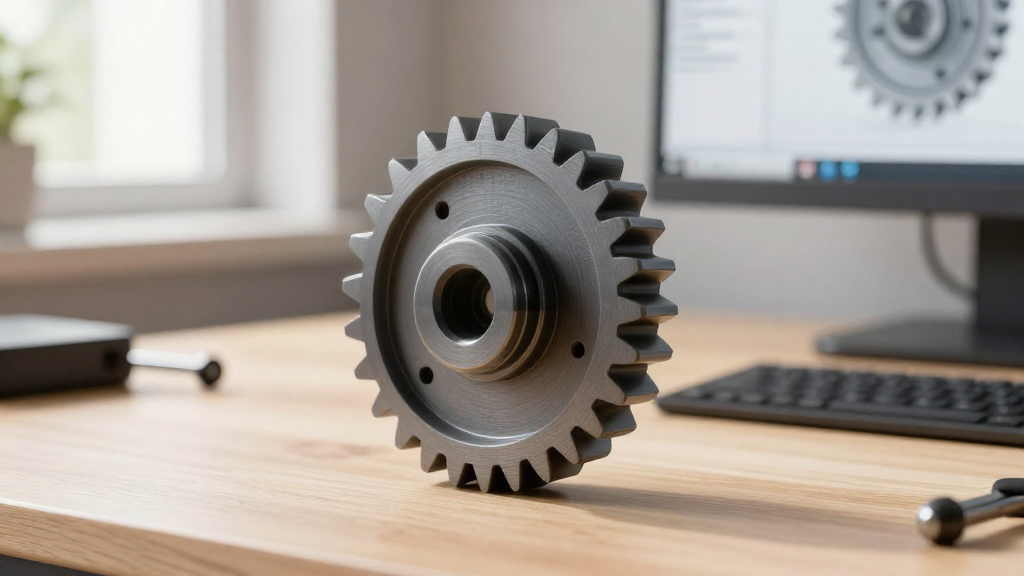
Gear modeling in SolidWorks is a vital skill for designers and engineers looking to create functional and efficient mechanical systems.
This guide will walk you through the essential steps and considerations for effective gear modeling.
What Is Gear Modeling in SolidWorks?
Gear modeling in SolidWorks involves creating 3D representations of gears that can be used in various applications, including machinery, automotive systems, and robotics.
Understanding how to accurately model gears not only enhances design precision but also helps ensure that assemblies function smoothly.
Why Should You Focus on Gear Modeling?
-
Precision: Accurate gear modeling is crucial for the proper functioning of mechanical systems.
-
Efficiency: Poorly designed gears can lead to increased friction and wear, reducing the longevity of machinery.
-
Interoperability: Proper models can easily integrate with simulation tools to test performance under various conditions.
-
Creativity: Designing gears allows engineers to innovate and create custom solutions tailored for specific needs.
In the competitive field of engineering, mastering gear modeling in SolidWorks can set you apart, making you a valuable asset to your team.
What Are the Basic Components of Gears?
Before diving into gear modeling, it’s essential to understand the fundamental components:
- Teeth: The most critical feature, which engages with other gears.
- Pitch Circle: An imaginary circle that represents the point where the gears effectively interact.
- Face Width: The width of the gear teeth.
- Bore: The central hole where the gear mounts onto a shaft.
Familiarity with these components will assist you in creating more accurate models.
How Do You Start Gear Modeling in SolidWorks?
Step 1: Setting Up Your Document
- Open SolidWorks and create a new part document.
- Set your units by going to
Document Propertiesand choosing the desired measurement system, such as millimeters or inches.
Step 2: Define the Gear Parameters
Before you start modeling, it’s crucial to define key parameters:
- Number of Teeth: Determines gear size and interaction.
- Module or Diametral Pitch: Affects the tooth size and spacing.
- Pressure Angle: Influences tooth shape and strength.
Step 3: Create the Basic Gear Profile
- Start by creating a circle to represent the Pitch Circle.
- Use Smart Dimention to define the circle diameter based on your module or diametral pitch.
- Employ the Entities tool to draw a polygon representing gear teeth around this circle.
- Use the Mirror Entities feature to ensure symmetry if you want an even number of teeth.
How Do You Add Teeth to Your Gears?
Step 4: Extrude the Gear Profile
- Select the gear profile and use the Extruded Boss/Base feature to give your gear some depth.
- Ensure the face width matches your earlier defined parameters.
Step 5: Refine the Gear Teeth
- Use the Fillet tool to create smooth edges on the teeth.
- You can also apply Chamfer to add more precise features that are common in real-world gears.
Step 6: Add the Bore
- Sketch a circle in the center of your gear and use the Extruded Cut feature to create the bore.
- Make this circle diameter suitable for the shaft you plan to mount it on.
What Tools Are Available for Gear Design in SolidWorks?
Essential SolidWorks Features for Gear Modeling:
- In-Context Design: Allows for real-time changes reflecting on all related components.
- Configurations: Utilize this to create multiple gear sizes and designs within the same file.
- DriveWorks: Ideal for automating the gear selection process based on predefined rules.
Useful SolidWorks Add-Ins
- GearTrax: A third-party tool specifically for gear design allows for more complex gears and layouts.
- SolidWorks Toolbox: Built into SolidWorks, it provides custom gear templates and variants.
What Should You Consider for Assembly?
When you finalize the design through gear modeling in SolidWorks, keep in mind that gears must fit and interact seamlessly with other components.
- Make sure to analyze the gear train adjustments.
- Evaluate the clearance between the gears and other moving parts to avoid interference.
- Perform motion studies to understand how the gears will interact in an assembly.
How to Simulate Gear Performance?
- Utilize the Motion Study feature in SolidWorks.
- Input parameters for loading and speed.
- Analyze performance, focusing on torque, friction, and wear.
This simulation will help validate your gear design before undergoing further manufacturing processes.
How to Document and Share Your Designs?
- Export Options: Use standard formats like STEP or IGES for easy sharing.
- Technical Drawings: Create 2D drawings from your gear models to provide details about dimensions, tolerances, and material specifications.
Sharing Tips
- Use SolidWorks’ built-in collaboration tools for team reviews.
- Publish online leverage tools like eDrawings for real-time feedback.
Conclusion: Mastering Gear Modeling in SolidWorks
Gear modeling in SolidWorks is an invaluable skill for engineers and designers aiming for precision and efficiency in their mechanical systems.
By understanding the fundamentals and incorporating best practices, you can create high-quality gear models suitable for various applications.
Whether it’s for a simple design project or complex machinery, mastering this skill will greatly enhance your productivity and innovation within your field.
Strike a balance between creativity and functionality and enjoy the benefits of effective gear modeling in SolidWorks.
Explore the features, take your time refining your skills, and soon, you’ll be proficient in creating highly efficient gears that meet your engineering needs.
Remember, practice leads to excellence, so keep designing!
By following the steps outlined in this guide, you’ll pave the way for successful gear modeling in SolidWorks, fostering creativity and advancing your engineering knowledge.